Interactive Menu — Avora CLI
Explore CLI actions from a guided terminal menu or use the help screen to find the exact command and options you need.
Task
Open the command palette, move between its actions, and return to the standard help screen when you need command syntax.
Prerequisites
- Avora CLI is installed and the
avoracommand is available. - Use an interactive terminal for arrow-key navigation.
Find This in Your Terminal
Run either command to open the menu:
avora
avora menu
Steps
- Press the Up or Down arrow to move one item.
- Use
jorkas alternate down and up controls. - Press Page Down or Page Up to move five items.
- Press Enter to select the highlighted action.
- Press
qor Escape to close the current selector.
For a confirmation prompt, Left and Right also move between Yes and No. Closing a confirmation uses the displayed default choice.
To see every command, option, and example without opening the menu, run:
avora help
# or
avora --help
Expected Result
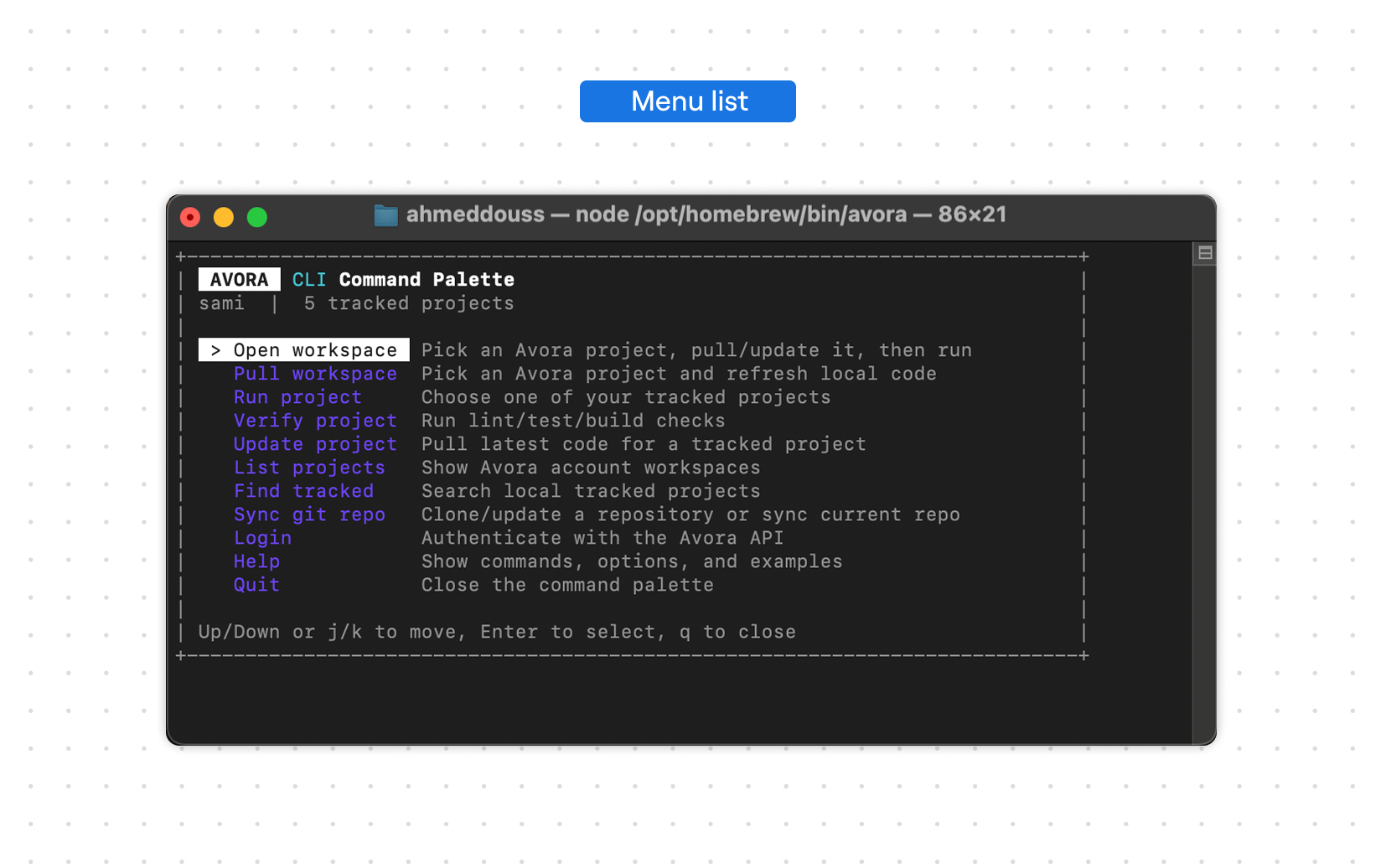
The menu shows the current account, the number of tracked projects, and actions such as Open workspace, Pull workspace, Run project, and Verify project.
Next Step
Use Sign In before opening an Avora workspace.
Troubleshooting
- If the menu prints help and exits, the current shell is not interactive. Run the command in a local terminal with TTY support.
- If arrow keys print characters, use
jandk, or call the command directly. - If an action cannot find a project, first use
avora open,avora pull, oravora connectto register one.