Generate and Export Backend Source Code
Use Code Generation to turn a validated Avora workspace into a backend project you can inspect, export, or publish.
Open a workspace and select Code in the navbar. Avora uses the current diagram, requests, logic flows, workspace settings, and environment variables to generate the backend.
Use the figure below as the visual reference for this page. It shows the generated file tree, the code preview area, the generation settings, and the export and publishing actions in one view.
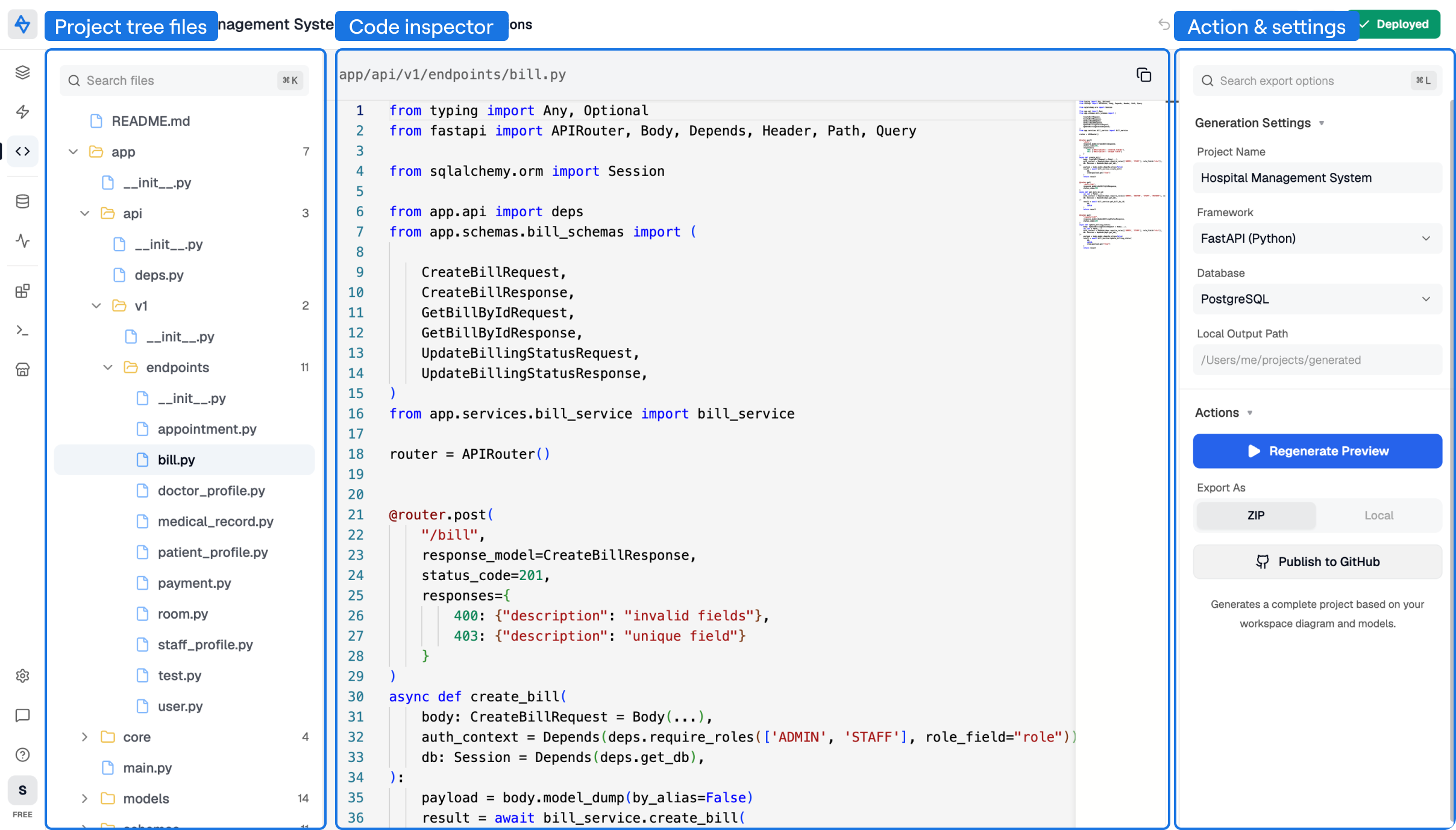
Generate Code
Generate code after the workspace structure is ready. Fix blocking validation errors first, because Avora does not generate from an invalid graph.
- Open the workspace you want to generate.
- Confirm the diagram has entities, enums, relationships, requests, and logic flows where needed.
- Open Code from the navbar.
- Review Generation Settings in the right sidebar.
- Set Project Name to the package or folder name you want Avora to use.
- Keep Framework set to FastAPI (Python) unless another enabled framework is available.
- Choose the database target, such as PostgreSQL or MongoDB.
- Select Generate Preview.
Result: Avora generates a backend project and loads the generated files into the Code view.
If the workspace is empty, the Code view shows No code to generate yet and links back to the Diagram view. If the workspace has blocking validation issues, the Code view asks you to fix them in the diagram before generation can continue.
Regenerate Preview
When you change the workspace after generating code, the right sidebar can show Regenerate Preview with an outdated indicator. Regenerate before exporting, publishing, or deploying so the code matches the latest visual backend.
Save a workspace version before large schema, request, or logic changes. This gives you a known point to restore if the new generated output is not what you expected.
Inspect Code
Use the generated file tree to inspect how Avora translated the visual backend into source files.
- Open Code after generation finishes.
- Use the left file tree to expand folders and select a file.
- Review the selected file in the read-only editor.
- Use the search field in the left sidebar when you need a specific file.
- Select the copy action in the editor header to copy the current file content.
The generated project is organized by backend responsibility:
| Area | What to inspect |
|---|---|
app/main.py | Application entry point and router registration. |
app/core/ | Runtime configuration, database setup, and security helpers. |
app/models/ | ORM models generated from entities, enums, and relationships. |
app/schemas/ | Request and response schemas generated from API contracts. |
app/services/ | Business logic and data access helpers. |
app/api/ | Routers, dependencies, authentication, and endpoint handlers. |
Dockerfile and docker-compose.yml | Container setup for local or preview runs. |
README.md | Project-specific run instructions generated with the backend. |
Treat the Code view as a review surface. Update the visual workspace when the generated code does not match your intent, then regenerate instead of editing the preview directly.
Export Code
Export when you want to run the generated backend outside the Avora workspace or hand it to another development workflow.
| Export option | Use it when |
|---|---|
| ZIP | You want a downloadable archive of the generated backend project. |
| Local | You want Avora to write the generated project to a configured output path available to the running backend environment. |
To download a ZIP:
- Open Code.
- Confirm the latest preview has been generated.
- In Export As, select ZIP.
- Save the downloaded archive.
- Unzip it and follow the generated
README.mdfor local setup.
To generate to a local output path:
- Enter an absolute path in Local Output Path.
- Select Local under Export As.
- Wait for the success message.
- Open the output folder and run the generated setup instructions.
Local generation only works when the Avora backend process can access the path you entered. If you are using a hosted environment, prefer ZIP download or GitHub publishing.
Publish to GitHub
Publish to GitHub when you want the generated backend in a private repository that your team can review, clone, or connect to a deployment workflow.
- Connect GitHub from your Avora account or profile settings.
- Open Code and generate the latest preview.
- Select Publish to GitHub in the right sidebar.
- Confirm or edit the repository name.
- Select Publish.
- Open the repository URL after publishing completes.
Result: Avora creates or updates a private GitHub repository with the generated project files.
If GitHub is not connected, Avora redirects you to the GitHub connection flow. Return to the workspace after authentication and publish again.
Continue to Deployment when you want to run the generated backend as a live preview.
Framework and Database Availability
The current Code export selector enables FastAPI (Python). Spring Boot is shown as an upcoming option and cannot be selected there yet. Choose from the enabled options in your workspace when checking framework availability.
PostgreSQL and MongoDB are separate generation targets. The FastAPI file tree above describes a typical PostgreSQL project; database-specific files and dependencies can differ for MongoDB. The interactive Database view currently documents PostgreSQL inspection and record management.
The MongoDB import integration listed in account settings is a different feature from selecting MongoDB as a generated backend target. Its coming-soon status does not describe code generation.
Verify an Export Before Hosting It
For the task-tracker example, open the generated README, install its stated dependencies, and provide the environment variables required by that project. Start the backend using its generated instructions and open its API documentation.
Check the Task model, the POST /tasks and GET /tasks handlers, their access rules, and the connected service logic. Create a test task and read it back. This checks the exported backend's behavior as well as whether the source files were generated.
| Problem | What to inspect |
|---|---|
| Export contains an earlier API contract | Regenerate Preview after saving the latest workspace changes. |
| Backend cannot connect to its database | Check the generated environment configuration and database target. |
| A module or package is missing | Install dependencies from the exported project's generated files. |
| A custom action fails during generation | Review its field values, connected inputs, and framework template. |
| GitHub publishing cannot start | Connect GitHub in the account settings and retry from the Code view. |