Explore PostgreSQL Data with Avora AI
Use Database AI to explore and change live workspace data with natural language after the Database view has inspected a ready PostgreSQL target.
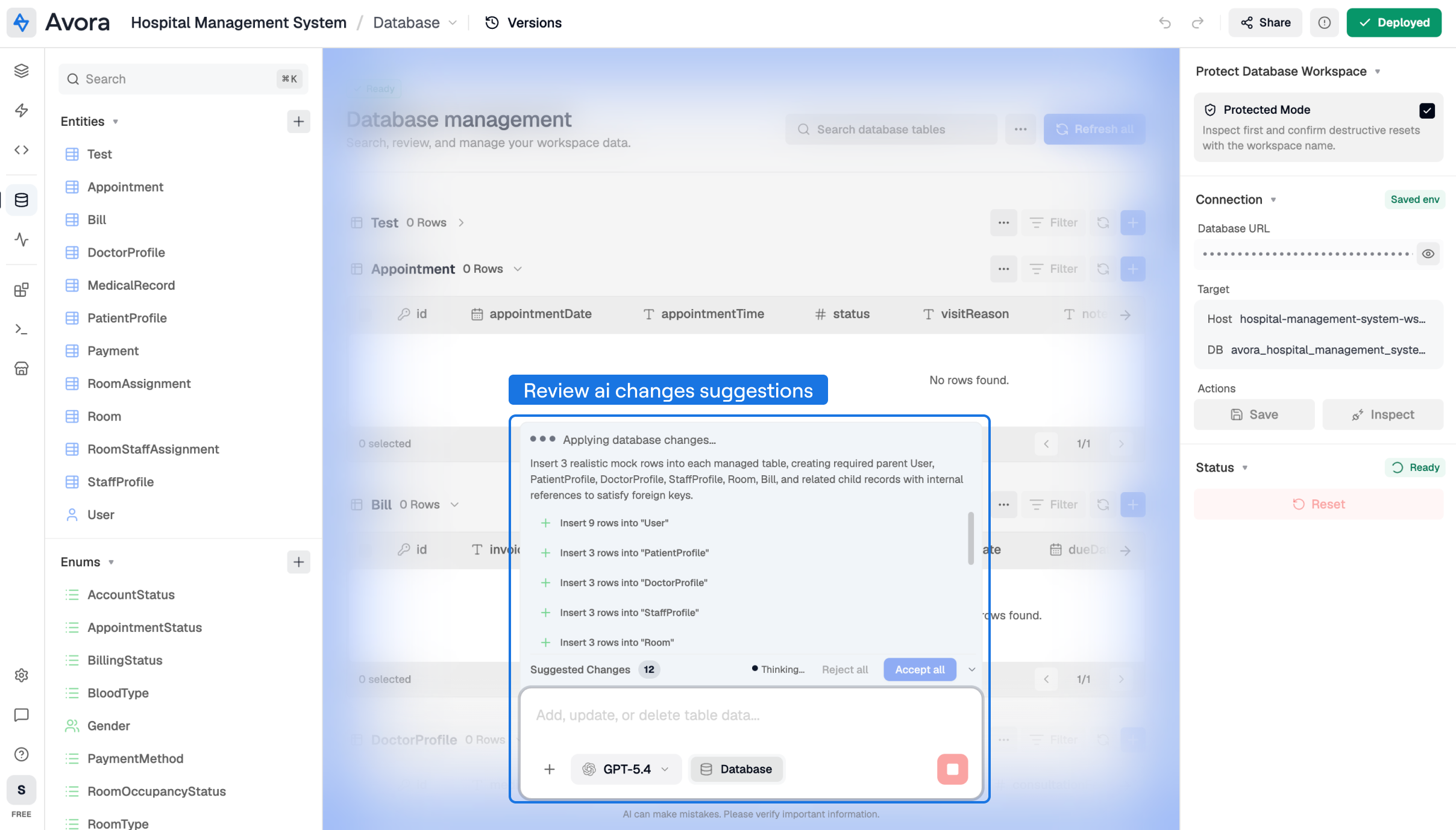
Database AI does not run blindly. It prepares insert, update, delete, and relation operations, validates them against the inspected schema and visible rows, then asks you to review the changes before applying them.
Explore Data
Use AI exploration when you want help understanding the visible table data before editing it.
Before using Database AI:
- Open a workspace.
- Open Database from the navbar.
- Select Inspect database.
- Confirm any required reset only when the target is safe to refresh.
- Wait until the database status is Ready.
- Filter, sort, or open the tables that should be included in the AI context.
The prompt sees the inspected schema and the visible page of table rows. If the needed records are not visible, filter or navigate to them first.
Good exploration prompts include:
- "Summarize the visible orders and flag rows that look incomplete."
- "Which customers in this page are missing contact details?"
- "Explain the relation between these appointment and patient rows."
- "Find rows that look ready for deletion but do not change anything yet."
When you only want analysis, make that explicit. For example: "Explain the visible data, do not modify records."
Manage Records
Use AI management when you want Avora to prepare database changes from a natural-language instruction.
Supported change types include:
| Operation | What it can do |
|---|---|
| Insert rows | Create one or more rows in generated entity tables. |
| Update rows | Change editable fields on rows visible in the current table page. |
| Delete rows | Remove selected or visible rows when the prompt clearly asks for deletion. |
| Set relations | Add, remove, or replace relationships between rows when the referenced records are visible or were inserted earlier in the same suggestion. |
To manage records with AI:
- Inspect the database and confirm the status is Ready.
- Open the table or rows involved in the change.
- Use filters so the relevant rows are visible.
- Type the data change in the prompt bar.
- Add a file attachment if it contains the source data.
- Send the prompt.
- Review the summary and generated operations.
- Accept the operations to apply them, or reject them to leave the database unchanged.
Result: accepted operations are sent to the database and the affected tables reload.
Safety Rules
Database AI validates changes before review:
- It limits large operation batches.
- It rejects unknown entities, unknown fields, and invalid enum values.
- It blocks primary-key edits on existing rows.
- It requires referenced relation rows to be visible or created in the same AI suggestion.
- It asks for review before applying any generated operation.
Use Database AI for development data, demos, QA setup, and controlled cleanup. For production data, confirm the database target, filters, and operation summary before accepting changes.
Continue to Custom Node AI to use AI while building reusable logic nodes.