Implement Custom Logic with the Code Builder
Use the Code Builder to implement a custom logic node after its visual contract is defined. The Code Builder reads the active node settings, variants, config lines, fields, outputs, logic flows, errors, and framework selection, then gives you a tagged template to complete.
Open Code Builder from the custom node builder topbar. The selected node and active variant appear in the topbar, the left sidebar lists the available tags, the center editor holds the framework code, and the right sidebar manages implementation details such as dependencies.
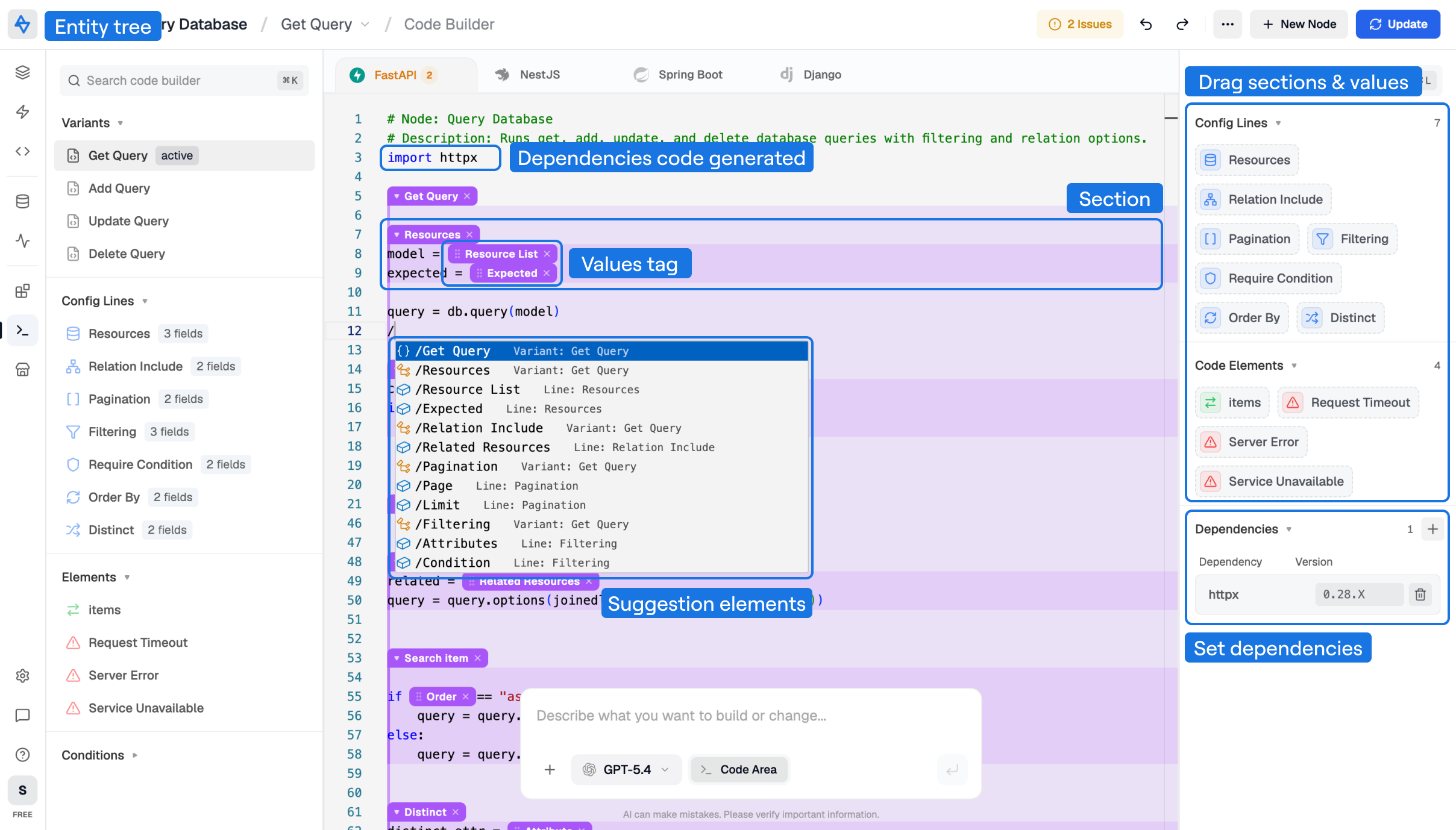
Framework Templates
Each framework has its own code template. The current builder exposes tabs for FastAPI, NestJS, Spring Boot, and Django.
| Framework | Language | Use this template for |
|---|---|---|
| FastAPI | Python | Python service logic used by generated FastAPI backends. |
| NestJS | TypeScript | TypeScript service/helper logic used by generated NestJS backends. |
| Spring Boot | Java | Java service logic used by generated Spring Boot backends. |
| Django | Python | Python logic shaped for generated Django backends. |
To work on a framework template:
- Open Code Builder from the custom node.
- Select the framework tab you want to support.
- Use the generated scaffold as the starting point.
- Implement the active variant behavior.
- Repeat for every framework the node should support.
- Leave unsupported frameworks untouched until their code can pass validation.
The add-framework control shows framework tabs that are not currently visible. Reopened templates can show frameworks that already contain customized code.
Section Model
The Code Builder turns the Visual Node Builder structure into tagged code sections. These sections are how Avora keeps the code template connected to the node interface.
| Visual structure | Code Builder representation |
|---|---|
| Variant | A top-level config section for that variant. |
| Config line | A nested config section inside the variant section. |
| Input field or select field | A value tag inside the matching config-line section. |
| Output | An output section where result mapping can be implemented. |
| Logic flow | A logic-flow section where branch behavior can be implemented. |
| Error handler | An error section where the failure path can be implemented. |
| Condition | A config section for conditional UI or behavior logic. |
For example, a variant section can contain several config-line sections, and each config-line section can contain field value tags:
/*__HLV1_START__|type=config|id=validate_coupon|name=Validate Coupon__*/
  /*__HLV1_START__|type=config|id=main_line|name=Validate Code__*/
  coupon_code = /*__HLV1_FIELD__|type=config|id=couponCode|name=Coupon Code|options=[]__*/
  cart_total = /*__HLV1_FIELD__|type=config|id=cartTotal|name=Cart Total|options=[]__*/
  /*__HLV1_STOP__|type=config|id=main_line|name=Validate Code__*/
/*__HLV1_STOP__|type=config|id=validate_coupon|name=Validate Coupon__*/
The field tags are value placeholders. At generation time, they are replaced or resolved from the node configuration values chosen by the user in the logic flow.
Configuration Tags
Configuration tags are markers that bind code back to the visual node structure. They let Avora validate that required visual elements still have matching implementation sections.
The Code Builder can insert tags for:
- Active variant sections.
- Configuration lines.
- Non-text fields inside a line.
- Outputs.
- Logic flows.
- Error handlers.
- Conditions.
- Outputs, flows, and errors inside custom element packs.
A section tag has a start marker and a stop marker. A field tag inserts the field value placeholder inside code.
Keep these markers intact. You can move code inside a tagged section, but deleting the marker pair can create validation errors such as missing variant section, missing required line section, unmatched stop marker, or unknown config section.
Add Tags From Suggestions
Use slash suggestions when you want to insert a tag without dragging from the sidebar.
- Click inside the code editor.
- Type
/. - Choose a suggested variant, config line, field, output, logic flow, error, condition, or element-pack item.
- Press Enter to insert the selected tag.
You can filter suggestions by typing after the slash. For custom undeclared tags, use prefixes such as /variant:, /line:, /field:, /output:, /logicflow:, or /error:. Undeclared custom tags are useful while drafting, but review them before publishing because validation can warn when code references structure that is not declared in the Visual Node Builder.
Drag and Reorder Sections
The right sidebar also exposes draggable tiles for config lines, line fields, outputs, logic flows, errors, and custom elements. Drag a tile into the editor to insert its matching section or value tag at the cursor location.
Tagged sections inside the editor can be moved as a complete block. When you drag a section, Avora moves the section markers, all code inside the section, and any nested value tags or child sections together. This is useful when you want to reorder variant logic, move a config-line implementation under the correct variant, or keep output/error mapping near the code that produces it.
Field value tags can also be moved inline. Move a field tag when the configured value belongs in another expression but should still stay bound to the same Node Builder field.
Tag Selection
Use the left sidebar to jump between tags. Selecting a variant, line, output, logic flow, error, or condition scrolls the editor to the matching section and highlights the related visual item.
Use field tags inside implementation logic when the code needs a user-configured value. Use output, logic-flow, and error sections where the implementation maps results to the node contract.
Dependencies
Dependencies belong to a specific framework template. Add them when the implementation needs an external package that is not already part of the generated backend.
Examples:
| Need | Dependency example |
|---|---|
| HTTP calls in Python | httpx |
| Date parsing in TypeScript | date-fns |
| Token or crypto helpers | A vetted framework-specific package |
| Provider SDK | The official SDK for the service you are integrating |
To add a dependency:
- Open the framework tab.
- Use the dependency section in the Code Builder right sidebar.
- Enter the package name.
- Add a version when the node requires a specific compatible release.
- Save the dependency with the framework template.
The dependency is stored with the active framework template. The version field lets you pin or document the compatible package version for that framework. If you leave the version empty, the dependency is still saved by name.
Avora also generates code imports from dependencies where possible:
| Template language | Generated import shape |
|---|---|
| Python | import package_name |
| TypeScript | import * as packageName from 'package-name'; |
| Java | import package.name; |
When you add a dependency, Avora inserts the generated import line near the top of the active variant code and keeps the dependency list synchronized with the template metadata. Review generated imports before publishing, especially when a package name and import module name are different.
Do not store secrets in dependency names, import lines, or code literals. Use environment variables or request/runtime configuration for credentials.
Code Validation
Code validation checks whether the framework template still matches the visual node structure.
Validation can report:
| Issue | What it means |
|---|---|
| Template file is empty | The selected framework has no implementation body. |
| No config sections found | The code has no variant or line section tags. |
| Missing variant section | A visual variant has no matching tagged section. |
| Missing required line section | A required visual line is not represented in the variant code. |
| Required line section outside variant | A line tag exists, but it is not nested inside the correct variant section. |
| Unmatched STOP marker | A stop tag exists without its matching start tag. |
| Missing STOP marker | A start tag was not closed. |
| Unknown config section | The code references a section that no longer exists in the visual structure. |
| Unknown field tag | A field tag refers to a field that was renamed or deleted. |
| Unknown output, logic flow, or error section | The code references an element that is not declared in the node structure. |
Resolve errors before publishing. Warnings are sometimes safe while drafting, but they should be reviewed because they often indicate stale tags after a variant, line, field, or output was renamed.
Recommended validation loop:
- Make visual changes in Visual Node Builder.
- Return to Code Builder and sync or regenerate the template.
- Check the builder issue list.
- Fix missing or stale tags.
- Re-run validation until the issue list is clear.
- Create a test snapshot before publishing.
Continue to Publish, Share, and Clone when the visual node and code templates are ready.