Build and Repair Custom Logic Nodes with AI
Use Custom Node AI to design, generate, and repair reusable logic nodes. It works in the AI draft flow, the Visual Node Builder, and the Code Builder.
Start with a custom-node draft when the behavior is still conceptual. Use the builders when you are ready to shape the node interface, generated code template, framework support, and validation fixes.
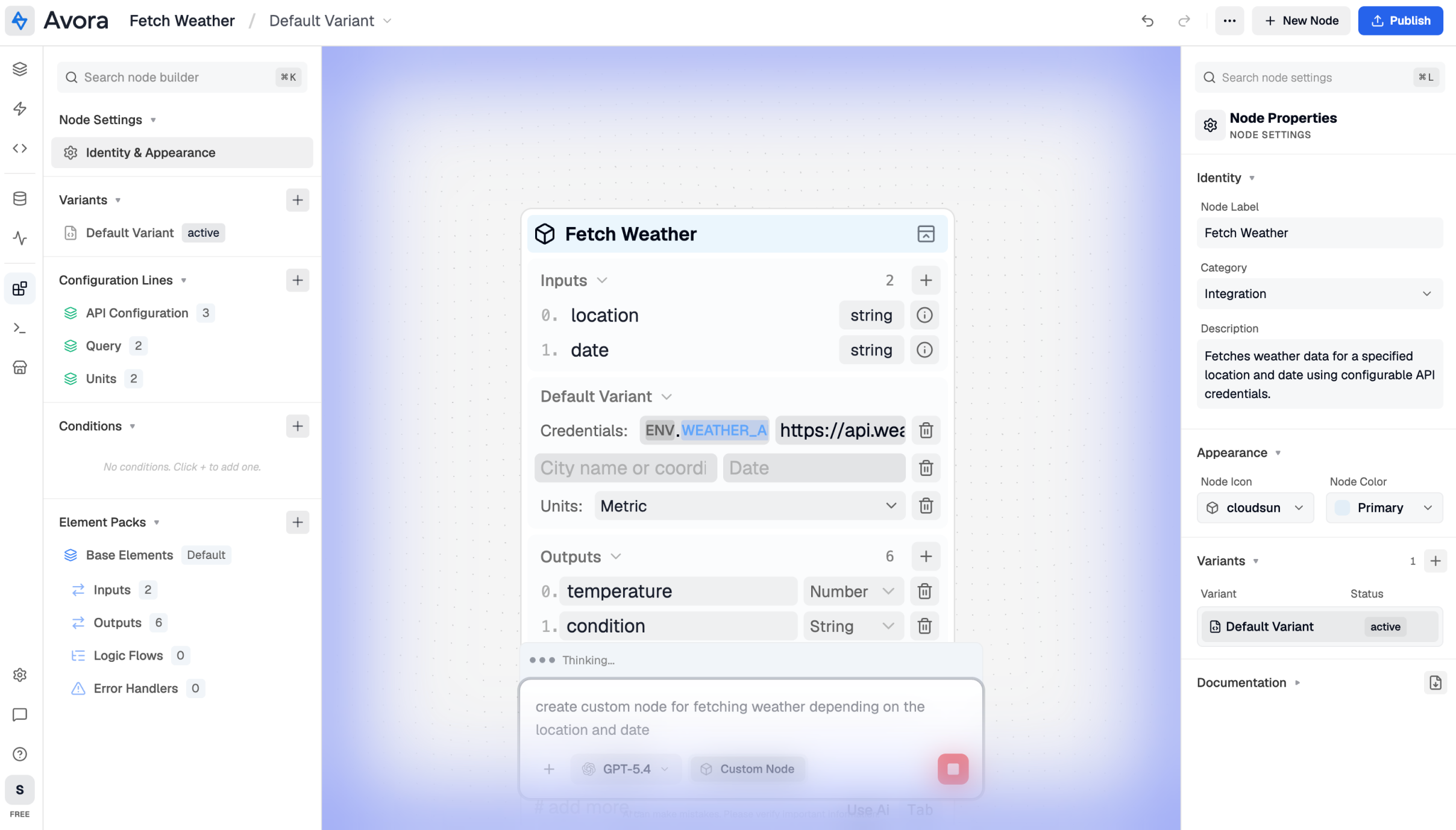
Visual Node Builder
Use AI in the Visual Node Builder when you want Avora to create or update the reusable node structure.
Custom Node AI reads the action you describe and turns it into the right builder elements. It decides which parameters should be user-configurable, which values should arrive as inputs from previous logic steps, which outputs should be available to later steps, and which errors or branches the node should expose. You still review and confirm the generated elements before they become the node contract.
The visual configuration should define:
| Node area | What AI can help create |
|---|---|
| Node settings | Name, category, description, icon, and color. |
| Variants | Operating modes such as create, verify, transform, send, or branch. |
| Inputs | Values the node receives from earlier flow steps. |
| Config lines | Sentence-like fields, selects, variables, and generic entity-driven rows. |
| Outputs | Values the node returns to later flow steps. |
| Logic flows | Named branches such as success, failure, true, false, or loop body. |
| Errors | Expected failures with messages and continue-or-stop behavior. |
To generate a visual node:
- Start from Plan and Chat with a Custom node draft, or open Node Builder directly.
- Describe the action node's purpose.
- Include the expected inputs, configuration fields, outputs, and failure cases.
- Send the prompt.
- Review the generated variants and elements.
- Edit labels, field types, required flags, defaults, and options before publishing.
Result: Avora fills the node builder with a structured custom action node that can be used in logic flows after it is saved or published.
Code Builder
Use AI in the Code Builder after the visual structure is clear. The Code Builder prompt uses the node configuration, active framework, current code, and required tag contract as context.
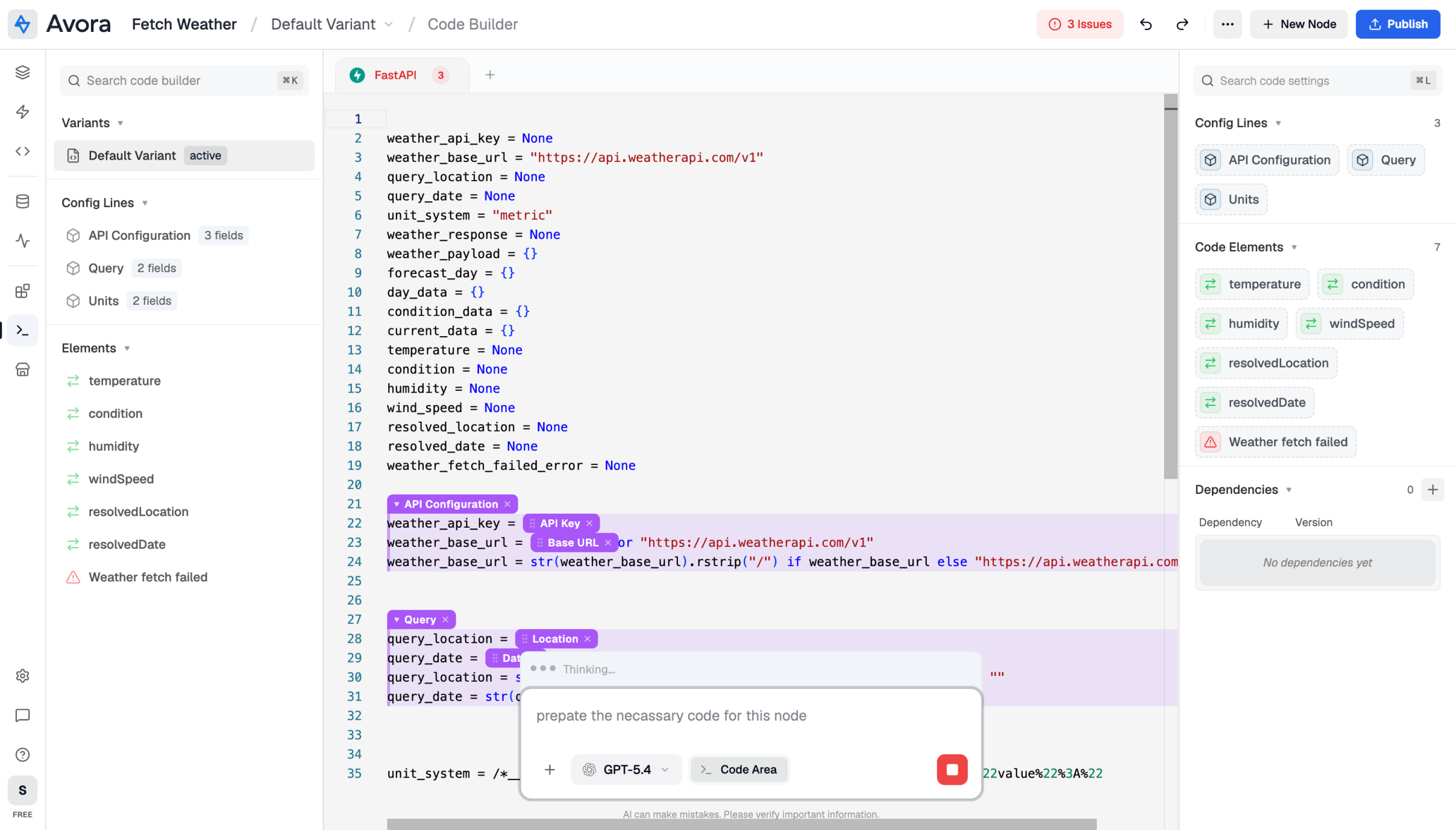
After you confirm the generated elements in the Visual Node Builder, Custom Code AI uses them as the source of truth for the implementation. It maps each confirmed input, config field, output, error, and variant into the right code template for the current framework or language. For example, a FastAPI node and a NestJS node can share the same visual contract while receiving different generated code shapes.
AI can help with:
- Generating the first framework implementation for each variant.
- Updating code after fields, outputs, or variants change.
- Preserving required section tags so Avora can map code back to node configuration.
- Adapting logic to FastAPI, Django, NestJS, Spring Boot, or another enabled framework template.
- Adding clear error paths that match the visual node errors.
When prompting, describe the runtime behavior, not only the UI. Include what each output should contain and when each error should trigger.
Review generated code before publishing. Keep the required tags intact, avoid hard-coded secrets, and confirm every output variable used by the node is assigned in the matching section.
Fix Node Issues
Custom node issues can come from either the visual configuration or the code template. Use AI to repair them when the issue is structural and the intended behavior is clear.
To fix node issues:
- Open the builder issue list.
- Read the error or warning and identify whether it belongs to the visual node or the code builder.
- Copy the issue or describe it in the AI prompt.
- Ask AI for the smallest repair that preserves the node's existing behavior.
- Review the generated visual changes or code changes.
- Re-run the builder validation before publishing.
Common fixes include missing outputs, mismatched field IDs, incomplete variant sections, invalid default values, stale code tags, and error handles that do not match generated code paths.
Return to Visual Node Builder for the full manual builder workflow, or review Logic Flow Builder to see where published nodes are used.