Edit Backend Models and API Logic with Workspace AI
Use Workspace AI after a workspace is open. The prompt bar can update the whole workspace, focus only on the diagram, focus on requests or a logic flow, update a selected node, add from an input plate, or help fix validation issues.
Workspace AI is review-based. Avora prepares changes, shows them in a modification review panel, and lets you accept or reject them before they become part of the saved workspace.
Full Workspace
Use the Workspace scope when a change affects more than one area. The interactive walkthrough above shows this full-workspace flow: Avora reads the prompt, prepares changes across the diagram and requests, then presents the generated operations for review before they are applied.
Examples:
- "Add vendor onboarding with approval, product catalog, and admin review requests."
- "Add role-based access for managers and customers."
- "Refactor this workspace for a booking platform instead of a generic marketplace."
To update the full workspace:
- Open the workspace.
- Open the AI prompt bar from the bottom canvas control.
- Select Workspace in the scope selector.
- Describe the change and mention important existing nodes with
@when needed. - Attach a plan, file, or image only if it directly supports the change.
- Send the prompt.
- Review the operation list.
- Accept the changes or reject them and rewrite the prompt.
Result: accepted operations update the workspace graph and can create changes across Diagram, Requests, and Logic Flow.
Diagram
Use the Diagram scope for focused data-model changes only. Choose it when you want AI to work on entities, enums, attributes, and relationships without also changing requests or logic-flow behavior.
Diagram AI is useful for:
- Adding entities and enums from a product idea.
- Expanding an existing entity with missing attributes.
- Normalizing field names and types.
- Creating relationships between selected entities.
- Fixing unclear or incomplete relationship structures.
After accepting diagram changes, inspect keys, required fields, enum values, multiplicity, relation type, and foreign-key owner. These settings affect generated database tables and request shapes.
Requests
Use the Request scope in the Requests view when you want AI to create or adjust API endpoints without rebuilding the whole workspace.
Requests AI is useful for:
- Creating CRUD endpoints for a specific entity.
- Adding action endpoints such as approve, cancel, assign, invite, or checkout.
- Updating headers, path variables, query params, body inputs, outputs, and status codes.
- Creating or refining the logic flow for a selected request.
To focus the request update:
- Open Requests from the navbar.
- Select a request group or a specific request when the change belongs to one area.
- Choose Request from the AI scope selector.
- Describe the endpoint behavior, input fields, output status, and access rules.
- Review the suggested operations before accepting.
Return to Request Builder when you need to manually verify the public API contract.
Selected Node
When one node is selected, the AI scope selector can focus on that node. Use this for small, targeted updates instead of sending the full workspace for every change.
Selected-node AI is useful for:
- Adding five useful attributes to a class.
- Suggesting values for an enum.
- Updating one request's inputs or outputs.
- Changing one logic action's configuration.
- Converting a rough sketch into a structured class or enum.
AI Node Button
The AI button on a node uses that node's current content as the main context. Avora checks the node type, existing fields, missing values, validation state, and nearby workspace structure before deciding whether the best action is to complete the node, fix an issue, or suggest the next useful change.
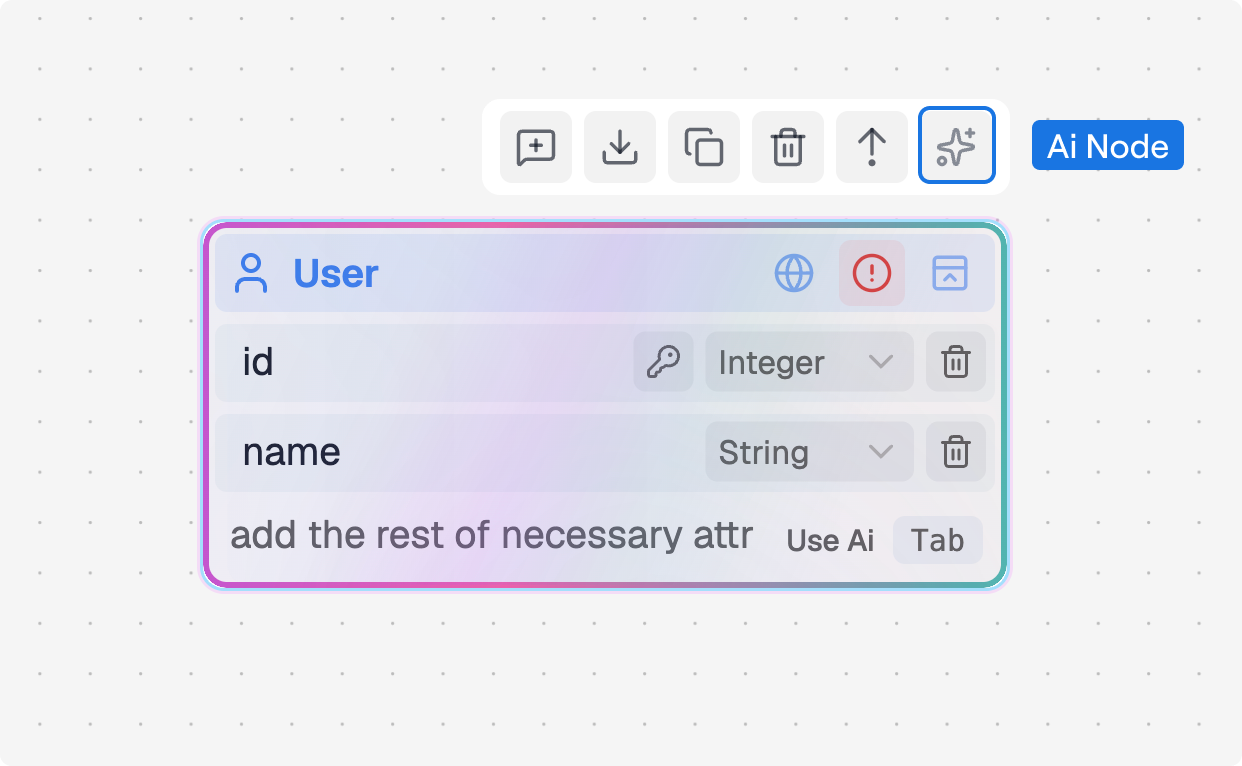
Use the node AI button when the question belongs to one node instead of the whole workspace. For example, an incomplete entity can receive missing attributes, an enum can receive likely values, a request can receive missing input or output fields, and a logic node can receive the configuration it needs to run correctly.
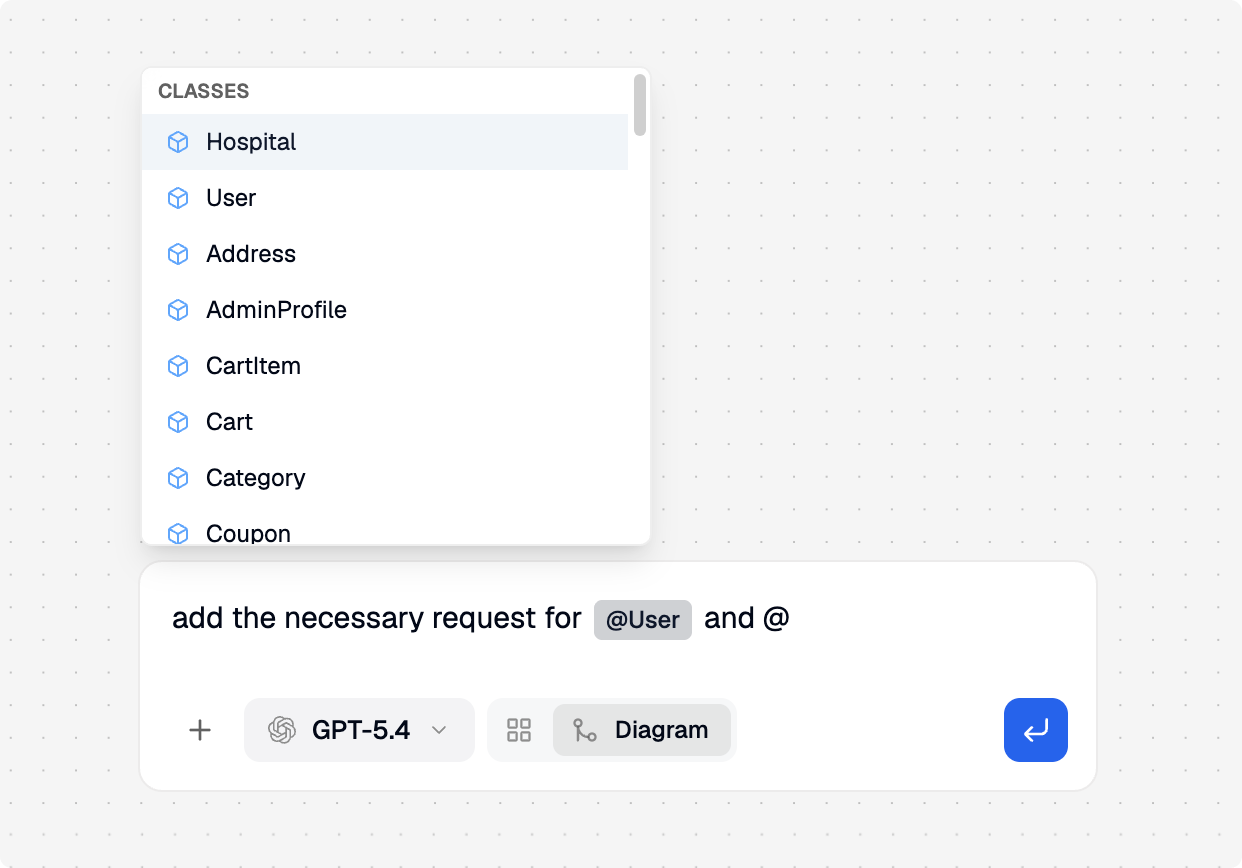
You can also type @ in the prompt to mention specific entities, enums, or requests. Mentions help AI understand which existing object should be changed.
Input Plate
Input plates are the fastest AI entry point for a single node or local canvas area. They appear at the bottom of entities, enums, requests, and logic action nodes.
Use the input plate when the change is small:
| Location | Example input |
|---|---|
| Entity | phoneNumber: string or "add address fields" |
| Enum | PENDING or "suggest order statuses" |
| Request | "add pagination query params" |
| Logic action node | "add a where condition for active users" |
Press Enter to add the typed item directly when supported. Press Tab when you want AI autocomplete to interpret the current input together with the node content, then complete or repair the selected context.
Fix With AI
Use Fix from the validation issues panel when Avora reports errors or warnings that AI can repair.
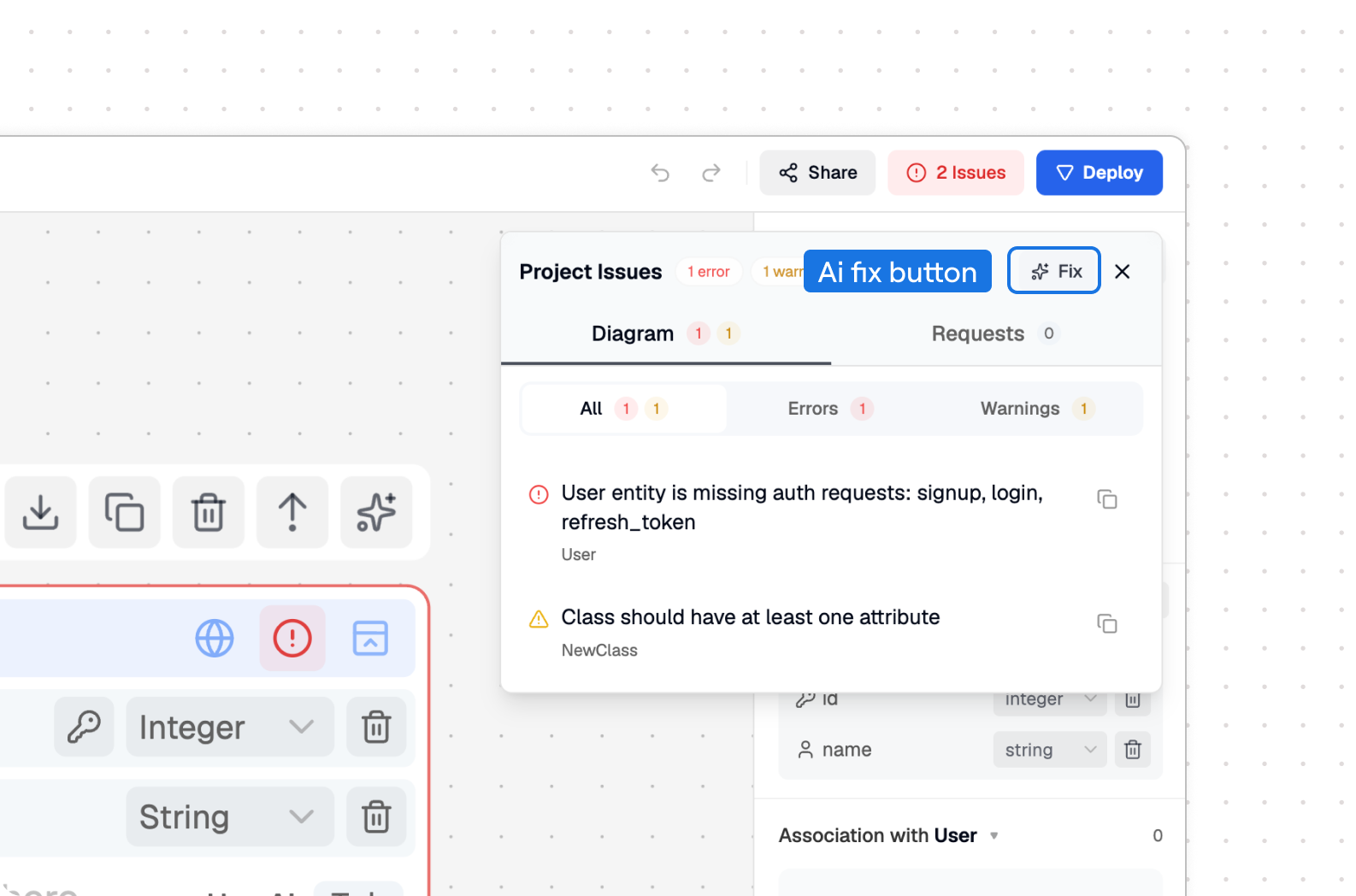
- Open the issues panel from the workspace header.
- Review the grouped Diagram and Requests issues.
- Select an issue to jump to the affected node when you want to inspect it first.
- Select Fix to ask AI to repair validation problems.
- Review the generated operations.
- Accept only the fixes that preserve your intended backend design.
AI fixes are most useful for missing fields, invalid types, incomplete request contracts, broken logic-flow connections, and obvious naming problems. For business-rule decisions, inspect the suggestion manually before accepting it.
Continue to Database AI when the workspace is generated, deployed, and connected to a database.