Plan Your Backend with Avora AI
Use Plan and Chat when you want Avora AI to help before a workspace is fully built. It can turn an idea into a reviewed draft plan, answer architecture questions, or use external inputs such as designs, screenshots, diagram files, and website references as planning context.
This page covers the AI draft flow, planning modes, conversational chat, and external inputs. After a plan is approved, continue into the workspace-specific AI tools.
AI Draft
An AI draft is a planning conversation that produces an editable backend plan before creating or changing a workspace. Use it when the idea is still broad, when you want Avora to choose a structure, or when you need a plan that teammates can review before implementation.
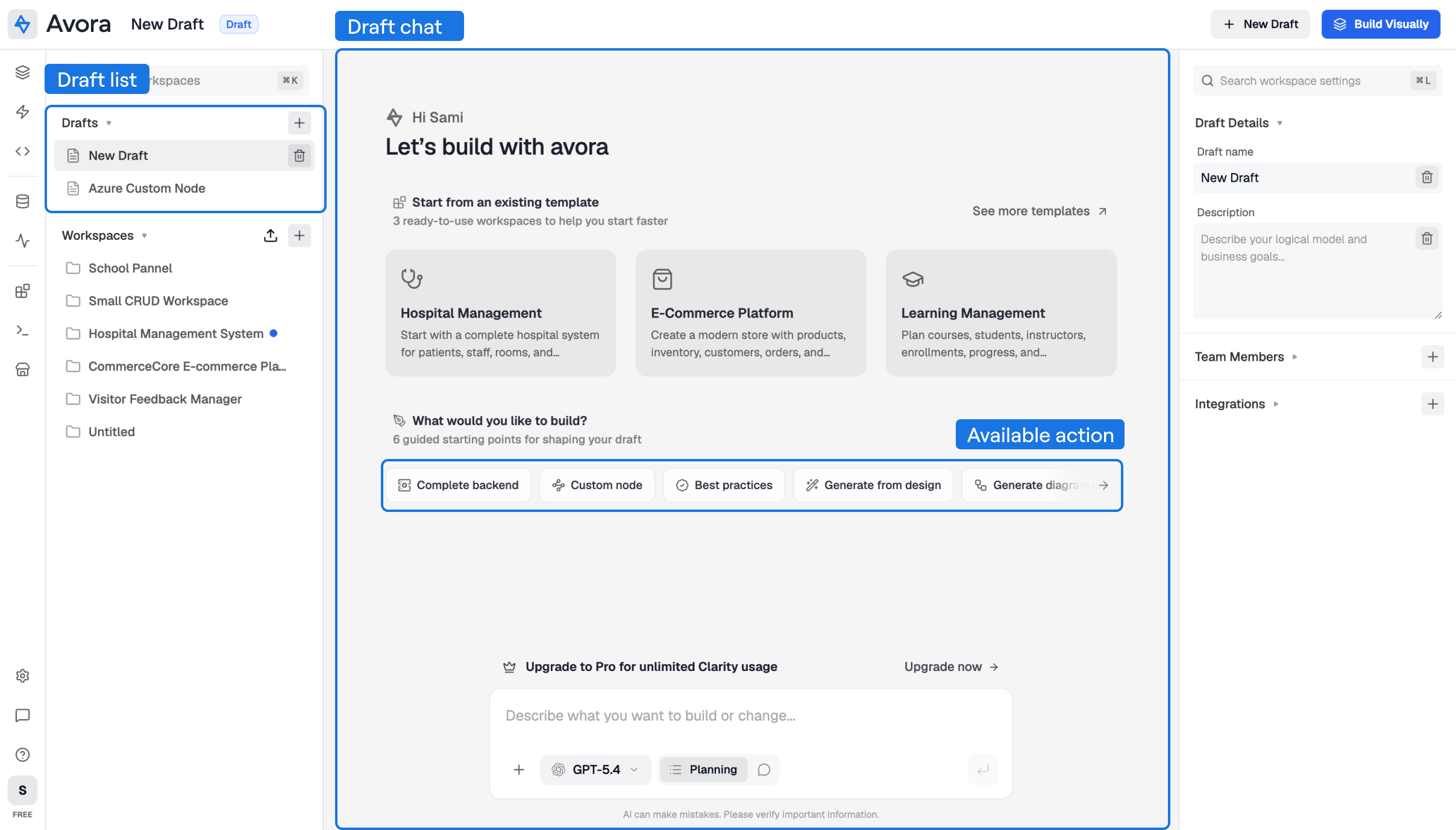
To create a draft:
- Open the Avora home page.
- Select an existing starter such as Complete backend, Generate from design, Generate diagram only, Import existing diagram, or Custom node, or type your own prompt.
- Keep the mode set to Planning when you want Avora to produce a structured plan.
- Choose the AI model from the model selector.
- Attach supporting input if needed.
- Send the prompt.
- Review the generated plan card.
- Add review comments, copy the plan, export it as Markdown, or ask AI to revise it.
- Select Implement when the plan is ready.
Result: Avora creates a draft plan you can edit and review before it becomes a workspace or a custom logic node.
You can keep more than one draft. Draft conversations are stored locally in your browser storage, so you can switch between multiple draft ideas on the same device before deciding which one to implement. Clearing browser storage, using another browser, or switching devices can remove or hide those local drafts.
Model Usage and Billing Estimate
Choose the model based on the kind of work you are asking AI to do. A smaller or faster model is usually enough for short chat, focused node updates, or text-only changes. Use a stronger reasoning or vision-capable model when the prompt includes screenshots, Figma context, imported diagrams, large workspace changes, or code generation.
| Model | Provider | Image input | Best use | Billing impact |
|---|---|---|---|---|
| GPT-5.4 | Azure | Yes | Default planning, full workspace generation, focused workspace edits, and general assistant work. | Medium to high |
| GPT-5.5 | Azure | Yes | Harder architecture, large refactors, complex custom nodes, and detailed reasoning. | High |
| GPT-4o mini | Azure | Yes | Routine drafts, chat, small diagram/request edits, and lower-cost image prompts. | Low to medium |
| Gemini 2.5 Flash | Gemini | Yes | Fast multimodal prompts, screenshots, design references, and quick draft iteration. | Low to medium |
| Gemini 3 Flash Preview | Gemini | Yes | Preview multimodal work where speed matters and output should be reviewed carefully. | Variable |
| Llama 4 | Groq | Yes | Fast visual or text assistance when available from the model selector. | Medium |
| Llama 3.3 70B | Groq | No | Text-only planning, chat, and structured reasoning without image attachments. | Medium |
| Llama 3.1 8B Instant | Groq | No | Lightweight text-only prompts and quick explanations. | Low |
| Gemma 3 4B Free | OpenRouter | No | Simple text-only questions where free-tier availability is preferred over capability. | Lowest |
If you attach an image, screenshot, or visual design, choose a model with Image input support. Models without image support are not suitable for visual analysis and may be unavailable when an image is attached.
Billing is estimated from both plan usage and token usage:
| Billing signal | What it means | Where to check |
|---|---|---|
| Monthly AI requests | Each submitted AI action counts against the monthly request limit for the current plan. | Settings > Plans & credits |
| Input tokens | Prompt text, selected workspace context, attached plan text, file text, schema context, and visible database rows sent to the model. | Admin AI usage analytics |
| Output tokens | The generated answer, plan, operations, node config, or code returned by the model. | Admin AI usage analytics |
| Estimated cost | Calculated from input tokens and output tokens using the model's configured token rates. Unknown models use a conservative default estimate. | Admin user detail and AI usage views |
Approximate cost formula:
estimated cost = (input tokens / 1,000,000 x input rate) + (output tokens / 1,000,000 x output rate)
To reduce usage, keep prompts focused, mention selected nodes instead of regenerating the whole workspace, prefer Diagram or Request scope for narrow changes, and avoid attaching large files unless the file content is needed.
Review the Plan Card
The plan card groups the result into the parts Avora can implement.
| Section | What to check |
|---|---|
| Workspace name and description | Confirm the project purpose, audience, and main product scope. |
| Diagram | Review entities, enums, and relationships before any workspace nodes are created. |
| API Requests | Confirm the endpoints describe real user or system actions. |
| Security | Check authentication providers and role permissions. |
| Custom Node | For custom-node plans, confirm the node purpose, expected elements, conditions, lines, and configuration. |
Use comments when the plan is mostly correct but one section needs a targeted revision. Use a new chat message when you want to change the overall direction.
Planning Modes
Planning modes decide what kind of artifact Avora should prepare before implementation. The mode is inferred from your prompt and from starter actions, but you can make it explicit in your wording.
| Planning mode | Use it when | Result |
|---|---|---|
| Full Workspace | You want a complete backend foundation with entities, relationships, requests, authentication, and implementation guidance. | The Implement action creates a workspace and starts building the planned diagram, requests, and logic. |
| Diagram Only | You only want the data model first, or you want to postpone API design. | The plan focuses on entities, enums, and relationships. Requests and security sections stay empty. |
| Custom Logic Node | You want a reusable action node for the Logic Flow Builder. | The plan opens in the custom node path and Implement in Node Builder sends it to the Visual Node Builder. |
Full Workspace
Use Full Workspace planning for product ideas such as SaaS tools, marketplaces, portals, internal systems, and mobile app backends.
Good prompts describe:
- The product category.
- The users or roles.
- The core stored data.
- The main actions users can perform.
- Authentication or permission requirements.
- Important integrations or constraints.
Example prompt:
Build a clinic booking backend with patients, doctors, appointments, rooms, payments, admin roles, and secure patient access.
Diagram Only
Use Diagram Only when the data model is the immediate goal. This is useful when you want to agree on entities and relationships before creating endpoints.
Example prompt:
Generate only the diagram for an inventory system with suppliers, warehouses, products, stock movements, and purchase orders.
After implementation, continue in Diagram Builder to adjust fields, enum values, relationship types, multiplicity, and foreign-key ownership.
Custom Logic Node
Use Custom Logic Node planning when you want Avora to design a reusable workflow action. The plan should describe the node purpose, configuration fields, inputs, outputs, errors, and behavior conditions.
Example prompt:
Create a custom logic node that validates a discount code, checks expiration, checks minimum cart amount, and returns the discount result or a clear error.
When you implement this plan, Avora opens the Visual Node Builder with the planned node context.
AI Chat
Use Chatting when you need advice, explanation, comparison, or review without producing an implementation plan.
Good chat questions include:
- "Should this be a composition or association?"
- "What fields should I add to this order model?"
- "How should I model roles for a school platform?"
- "What is the safest way to expose this endpoint?"
- "Review this plan before I implement it."
Chat responses do not automatically create workspace changes. When the answer becomes an implementation task, switch back to Planning or open the workspace and use Workspace AI.
External Inputs
The prompt canvas is the main place where you describe what AI should do. It combines the text prompt, pasted screenshots, imported files, the model dropdown, and the mode or scope switcher in one area.
| Control | What it does | Use it when |
|---|---|---|
| Text prompt | Describes the backend, change, question, or node behavior you want AI to work on. | You want to generate a plan, ask a question, update a workspace, or focus a selected node. |
| Add button | Opens the import dropdown for Image, File, and Figma inputs. | You want AI to read a screenshot, diagram file, exported structure, or design reference. |
| Paste screenshot | Lets you paste an image directly into the prompt canvas without opening the import menu. | You copied a screenshot from the browser, design tool, whiteboard, or operating system clipboard. |
| Model dropdown | Selects the AI model for the prompt. Models with image support should be used when visual inputs are attached. | You need to balance quality, speed, image support, and billing impact. |
| Switcher | Chooses the prompt mode or target scope. The available options depend on the current view. | You want to decide whether AI should chat, plan, update the whole workspace, focus on one view, or target a specific node. |
Switcher by View
The switcher changes with the active view so AI can receive the right context instead of always reading the whole workspace.
| Current view | Switcher can target | What AI considers |
|---|---|---|
| Draft home | Planning or Chatting | The draft prompt, selected starter action, attached files, selected model, and any design or website context. |
| Workspace | Workspace, Diagram, Requests, or a selected node when one is active | The opened workspace, visible graph structure, selected view, tagged nodes, and accepted workspace state. |
| Diagram | Diagram-wide changes or a specific class, enum, relationship, or selected node | Entity fields, enum values, relation type, multiplicity, validation issues, and nearby nodes. |
| Requests | Request-wide changes or a selected request node | HTTP method, path, params, body, output, linked entities, and request logic. |
| Logic Flow | Flow changes or a selected action node | Inputs, outputs, connected handles, action config, errors, and branch behavior. |
| Database | Explore data or prepare record changes | Inspected schema, visible rows, filters, and the operation review state. |
| Custom Node Builder | Visual node structure or code generation | Confirmed node elements, variants, fields, inputs, outputs, errors, and the active framework or language. |
To focus AI on one object, select the node before opening the prompt or tag it with @ in the prompt. Avora then treats that node's content as the main context and avoids changing unrelated parts unless the requested fix requires it.
Figma Design
Use Figma when a product design already shows screens, components, forms, or user flows.
- Open the prompt attachment menu.
- Select Figma.
- Enter the Figma file URL.
- Provide the required Figma access token when Avora asks for it.
- Describe what the design should become, such as a full workspace plan or a diagram-only plan.
- Send the prompt and review the generated plan.
Focus your review on whether Avora inferred the right entities, roles, forms, and request actions from the design. UI screens do not always map one-to-one to backend entities.
Diagram File
Use a diagram file when you already have structure from another tool or from a previous export.
- Open the prompt attachment menu.
- Select File.
- Attach a readable diagram or structure file such as JSON, XML, Markdown, SQL, or YAML.
- Tell Avora whether to preserve the structure exactly or clean it into an Avora-style backend model.
- Send the prompt.
If the file is large or ambiguous, include a short explanation of the important entities and relationships in the prompt.
Screenshot
Use screenshots when the source is visual: an admin panel, form, ERD, whiteboard, product screen, or competitor workflow.
- Open the prompt attachment menu.
- Select Image.
- Attach the screenshot.
- Use a model that supports image analysis.
- Explain what Avora should extract from the image.
Screenshots work best when text is readable and the target is clear. Add more context in the prompt if the screenshot only shows part of the workflow.
Website URL
Use a website URL when you want Avora to use an existing product, landing page, or public workflow as a planning reference.
- Select Add website reference or paste the URL into the prompt.
- Describe what Avora should learn from the website, such as features, roles, data objects, or workflows.
- Add screenshots or copied text when exact page content matters.
- Send the prompt and review the plan before implementation.
Treat website references as inspiration unless you provide exact content. Review the result carefully so the backend model matches your product, not only the reference site's visible pages.
Continue to Workspace AI to apply AI inside an opened workspace.