Paste Snapshot — VS Code Extension
Import an unpublished or temporary logic node configuration from the clipboard without adding it to the published-node list first.
Task
Copy a test snapshot in Avora and load it into a blank or existing VS Code tester.
Prerequisites
- You are signed in when using a server-backed snapshot reference.
- The node has at least one configured variant.
- The snapshot or JSON is currently on the clipboard.
Find This in the Tester
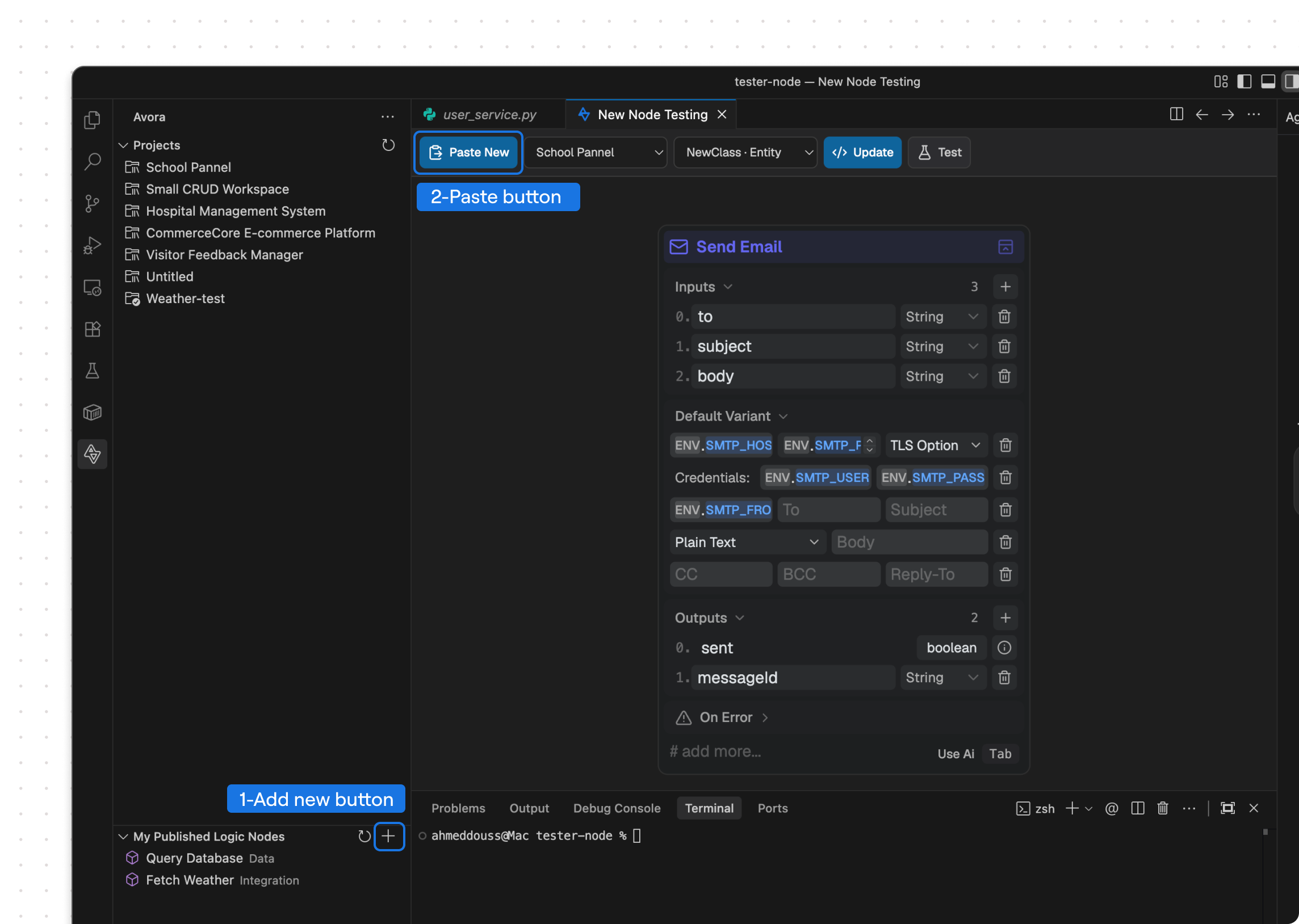
Run Avora: New Node Testing, then use Paste in the tester toolbar. When a node is already loaded, the button is labeled Paste New.
Steps
- In Avora Node Builder, finish the visual configuration and code bundle you want to test.
- Open More actions and select Copy test snapshot.
- Return to the VS Code tester and select Paste.
- The tester resolves the snapshot reference from Avora and imports the node.
- Confirm the node label, variants, fields, inputs, outputs, logic flows, and errors in the preview.
The tester also accepts a raw snapshot ID or a full JSON object containing a node configuration with a variants array. Pasting another node replaces the tester's current in-memory configuration; it does not modify the published template.
Expected Result
The imported node appears in the tester and becomes ready for workspace and variant configuration.
Next Step
Choose the workspace, target, variant, and inputs.
Troubleshooting
- If the clipboard is rejected, copy the snapshot again and avoid editing the JSON reference.
- If a snapshot reference cannot resolve, confirm you are signed in to the same Avora environment where it was created.
- If a full export is rejected, confirm its configuration contains a
variantsarray.