Status and Account — VS Code Extension
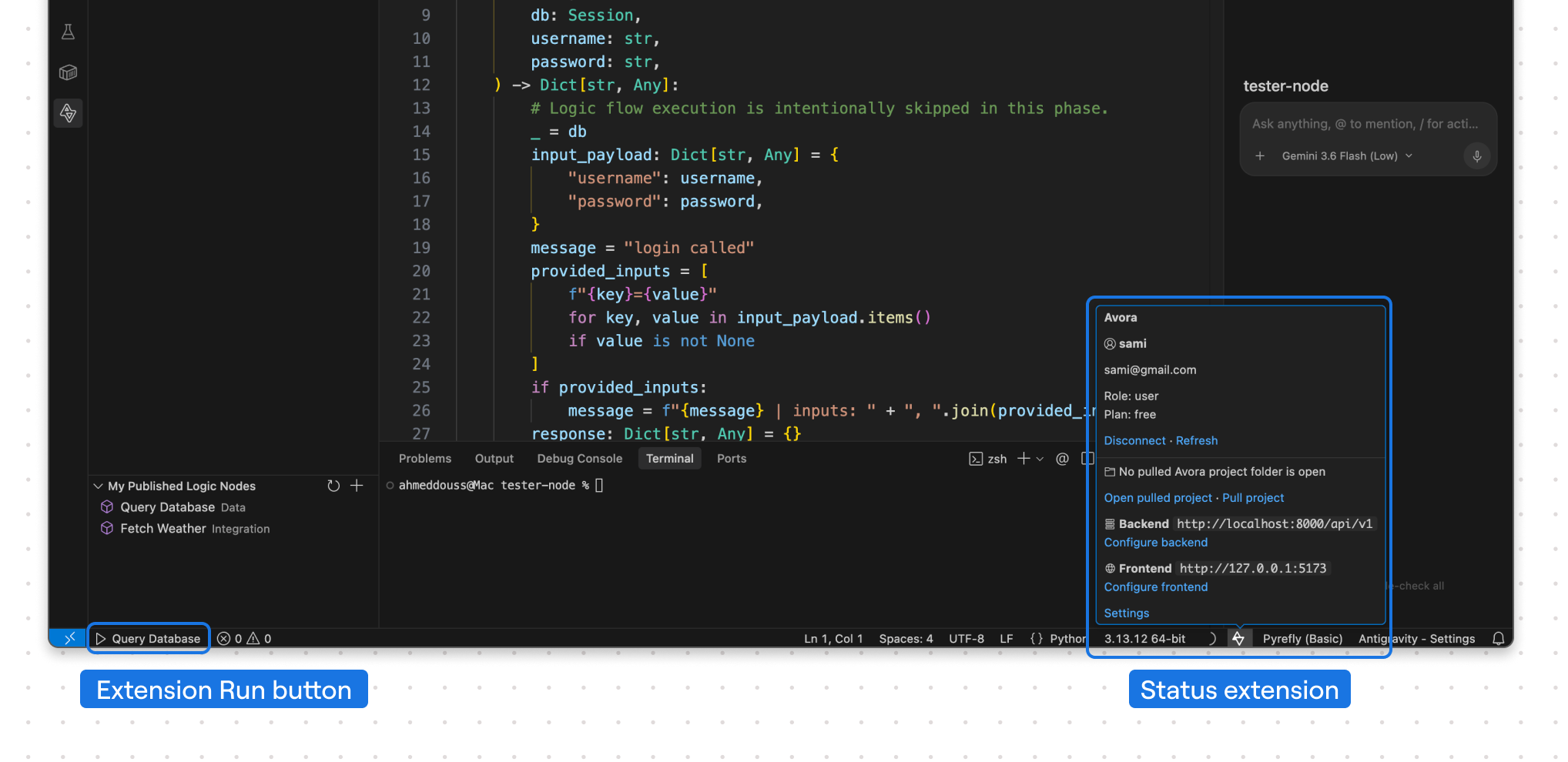
Use the Avora status item for connection details and the contextual run item for the managed folder currently open in VS Code.
Task
Check the active Avora session, switch common settings, select a project, and run the current managed folder.
Prerequisites
- The extension is installed and active.
- Sign in for account and project actions.
- Open a pulled project or generated node test folder to show the run item.
Find This in VS Code
The Avora logo is on the right side of the status bar. A separate play item appears on the left when the open folder contains valid Avora pull or node-preview metadata.
Steps
- Select the Avora logo to view the current connection, account, project, backend URL, and frontend URL.
- Run
Avora: Account Actionsfor the full action menu. - When signed in, choose from run/update current project, select a pulled project, pull a project, change URLs, refresh, disconnect, connect another account, or open settings.
- When signed out, use the same menu to connect or configure URLs before login.
- When a managed folder is open, select the play item labeled with the project or node name to run it.
The run target follows the active editor's workspace folder first, then the remaining open workspace folders. While the node tester is open, its generated preview is preferred.
Expected Result
Account actions reflect the current session, and the run item appears only when the extension recognizes usable managed content.
Next Step
List and select projects or open a published logic node.
Troubleshooting
- If account details cannot load, refresh the extension and inspect Output → Avora.
- If the play item is missing, open the exact pulled project or node test folder, not only its parent folder.
- If a failed sync left no usable generated files, recover or pull the project again before running it.